Accord library
The place for accords you use in more than one formula. Covers creating, editing, and finalizing versions of library accords, and how to save an accord from a formula to the library.
What you can do#
An accord is a group of materials within a formula. When you use the same group in several formulas, keep it in the accord library. When you edit a library accord and finalize a version, formulas that use it get the new contents from their next version.
List#
Open it from “Accord library” in the sidebar. The columns are Materials, Effective dilution, Latest version, Used in, and Updated.
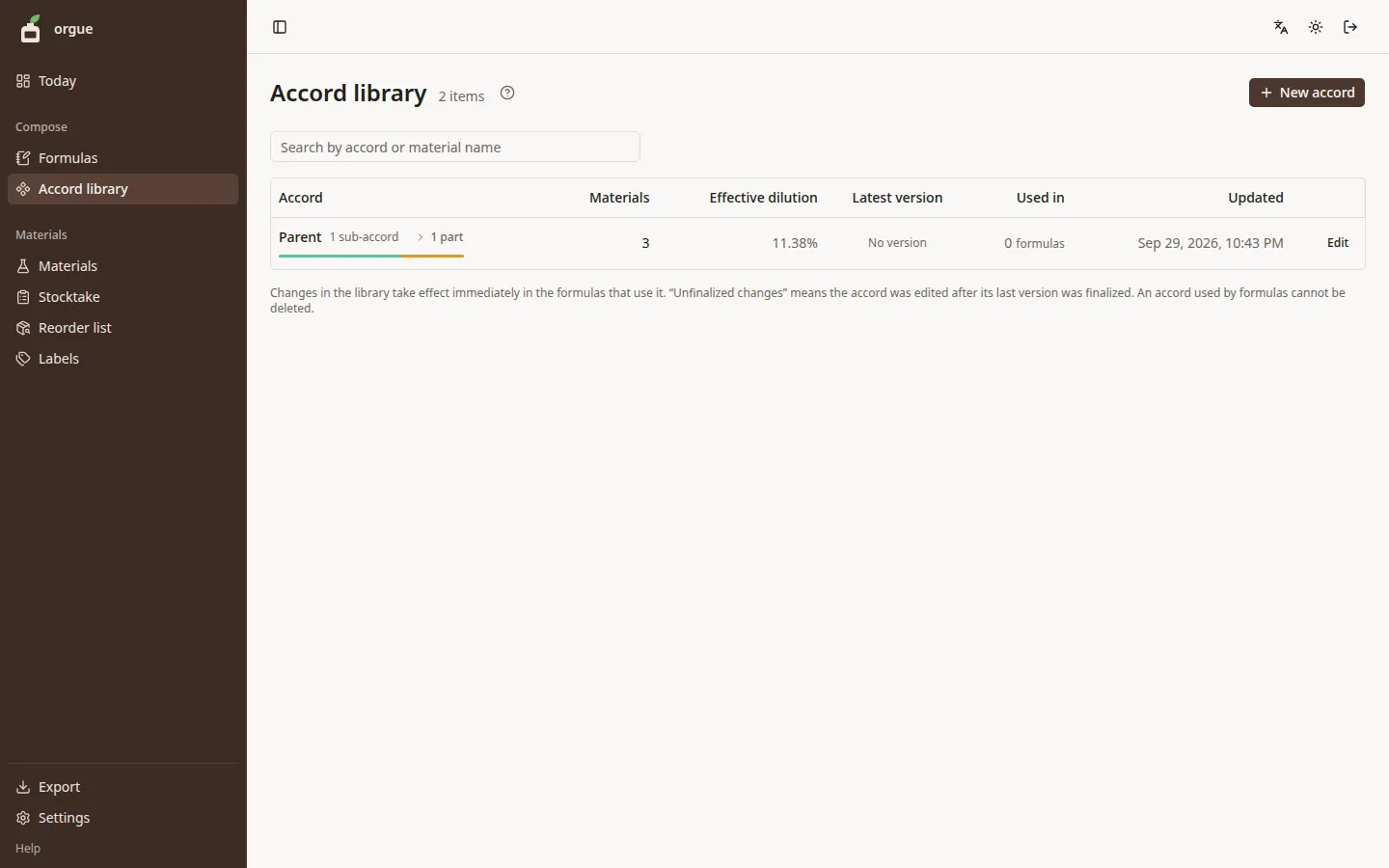
- Use the search box at the top to find an accord by its name or by the materials in it
- “Unfinalized changes” next to the latest version marks an accord whose contents were edited but not yet finalized as a version
- Accords that are parts of other library accords are collapsed under their parent’s row
Create and edit#
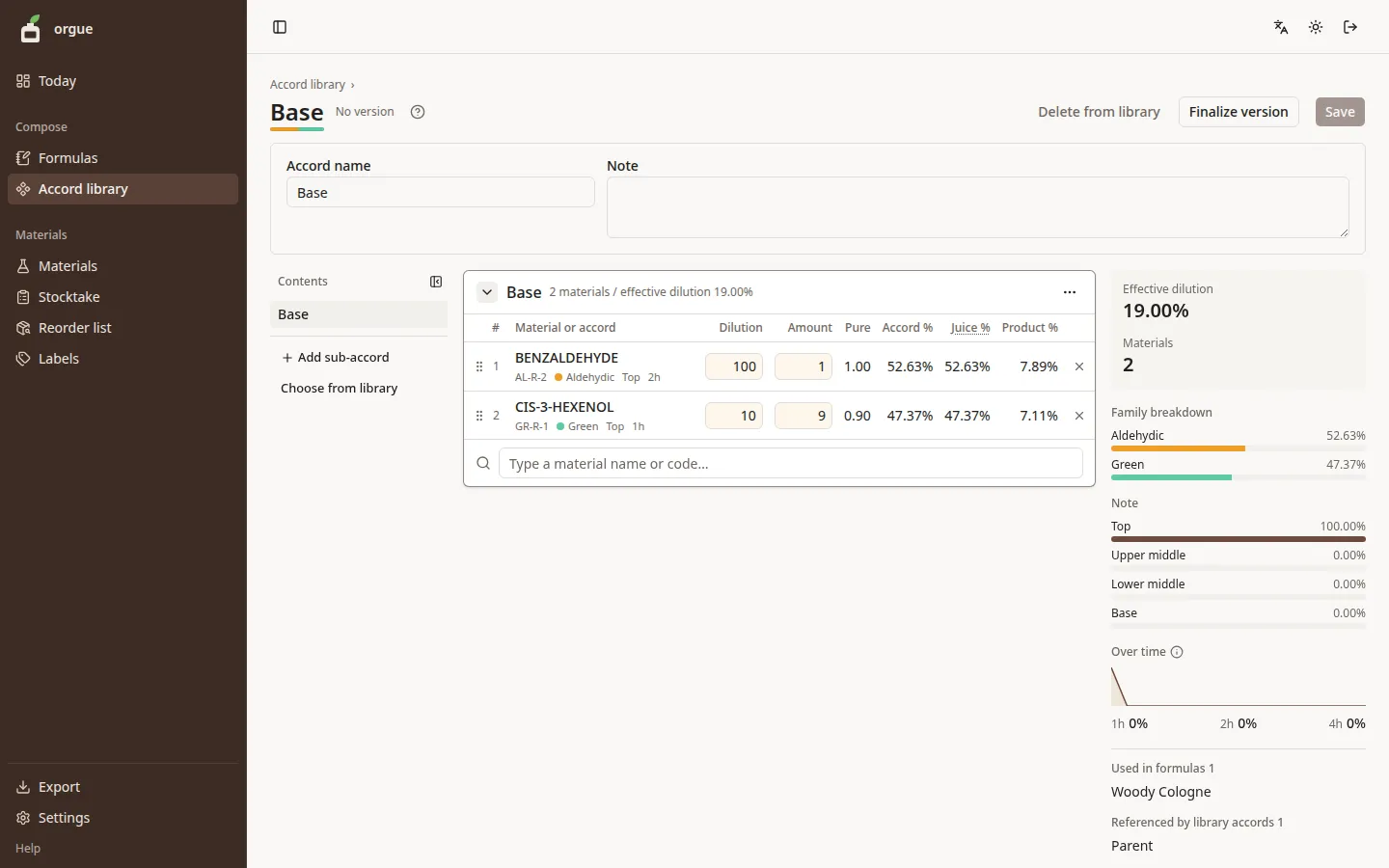
Open it from “New accord” at the top right of the list, or from a row in the list. It has the same three columns as the formula Design tab (contents on the left, cards in the middle, balance on the right).
Steps#
- Enter the accord name, add materials from the search box below the card, and enter their dilution and amount
- To split the group further, add a sub-accord with “Add sub-accord” below the contents
- There is no Save button. Your changes are saved when you leave a field (only a new accord is created by entering a name and clicking “Save”). When others have it open too, it works as on the formula Design tab (name tags; the value typed last is kept), and so does restoring an earlier point from History (sub-accords included)
- When the contents are settled, click “Finalize version”. When a formula uses this accord, it uses the contents of the finalized version
Save an accord from a formula to the library#
If you want to use an accord you built on a formula’s Design tab in other formulas too, choose “Save to accord library” from the “…” menu on its card. After a confirmation dialog, the accord becomes v1 in the library, and in the formula it is replaced by a card that references the library.
Extract rows into a sub-accord#
Choose “Select rows to extract” from the “…” menu on a card, and checkboxes appear at the left of the rows. Name the selected rows, and they move into a new sub-accord (one row with their total amount stays in the original place, so the calculated result does not change).
Common pitfalls#
- Numbers that need the formula’s category and bottles (over IFRA limit, short on stock) do not appear on this screen. Check them on the formula’s Design tab
- “Delete from library” stops if any formula uses the accord. Remove the references first, using the formula names shown when it stops
- “Choose from library” does not list this accord itself, or accords that use this accord (that would make a loop)
- “Finalize version” is unavailable while the accord has no material lines. If you select it while typing, your changes are saved first