Formulas
How to use the formula list, New formula, the four tabs (Design, Formula sheet, Make, Versions), Compare, and the archive. Build a scent, finalize a version, and make a batch.
Formula list#
This screen lists your formulas. Open it from “Formulas” in the sidebar. The columns are IFRA category, Concentration, Bottles, Per bottle, Latest version, Accords, Materials, and Updated.
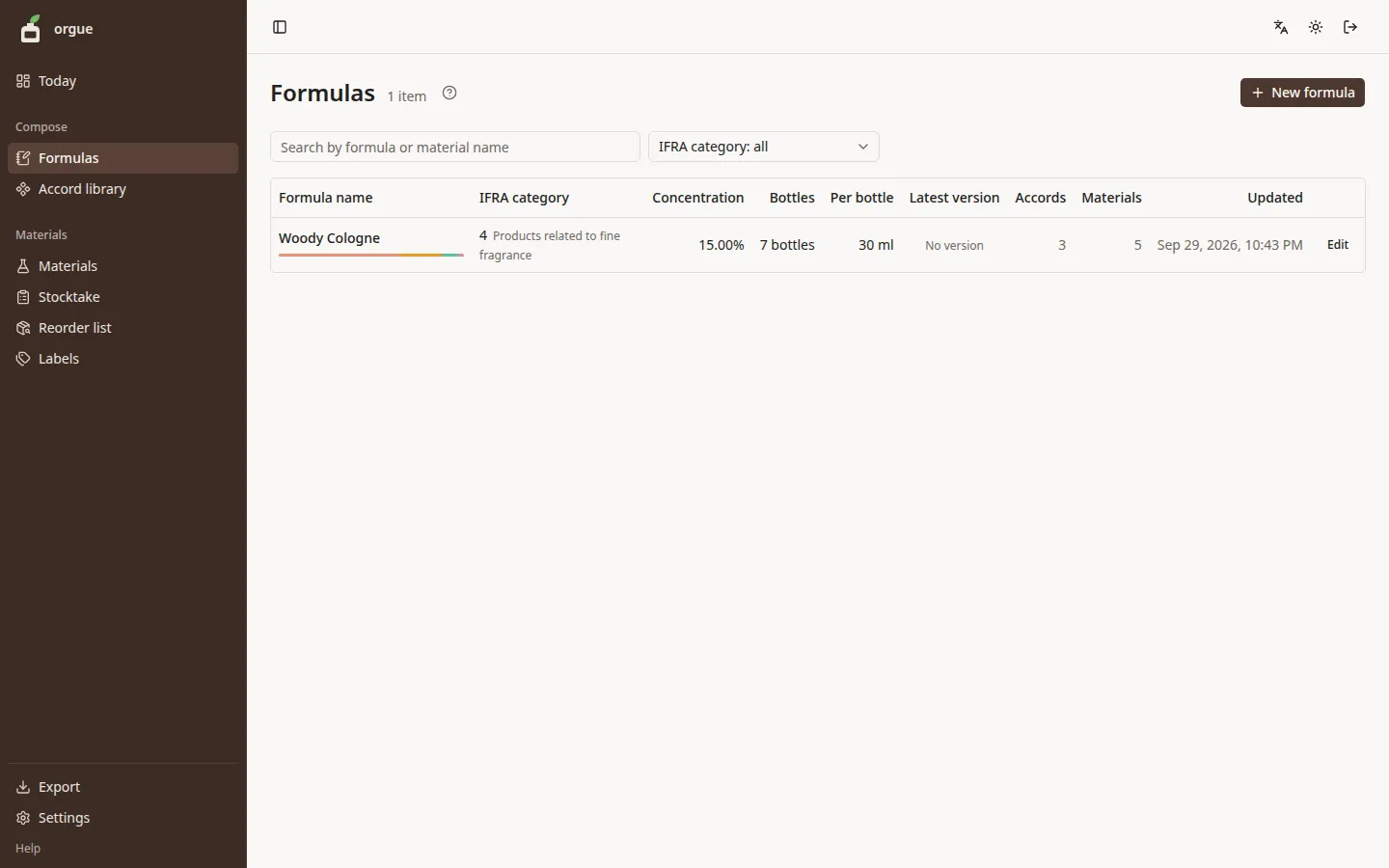
- Use the search box at the top to find a formula by its name or by the materials it uses
- A formula with two or more drafts shows the count next to its name, such as “3 drafts”
- Archived formulas do not appear in the list. Open them from the “Archive (N)” link at the bottom (Archive)
New formula#
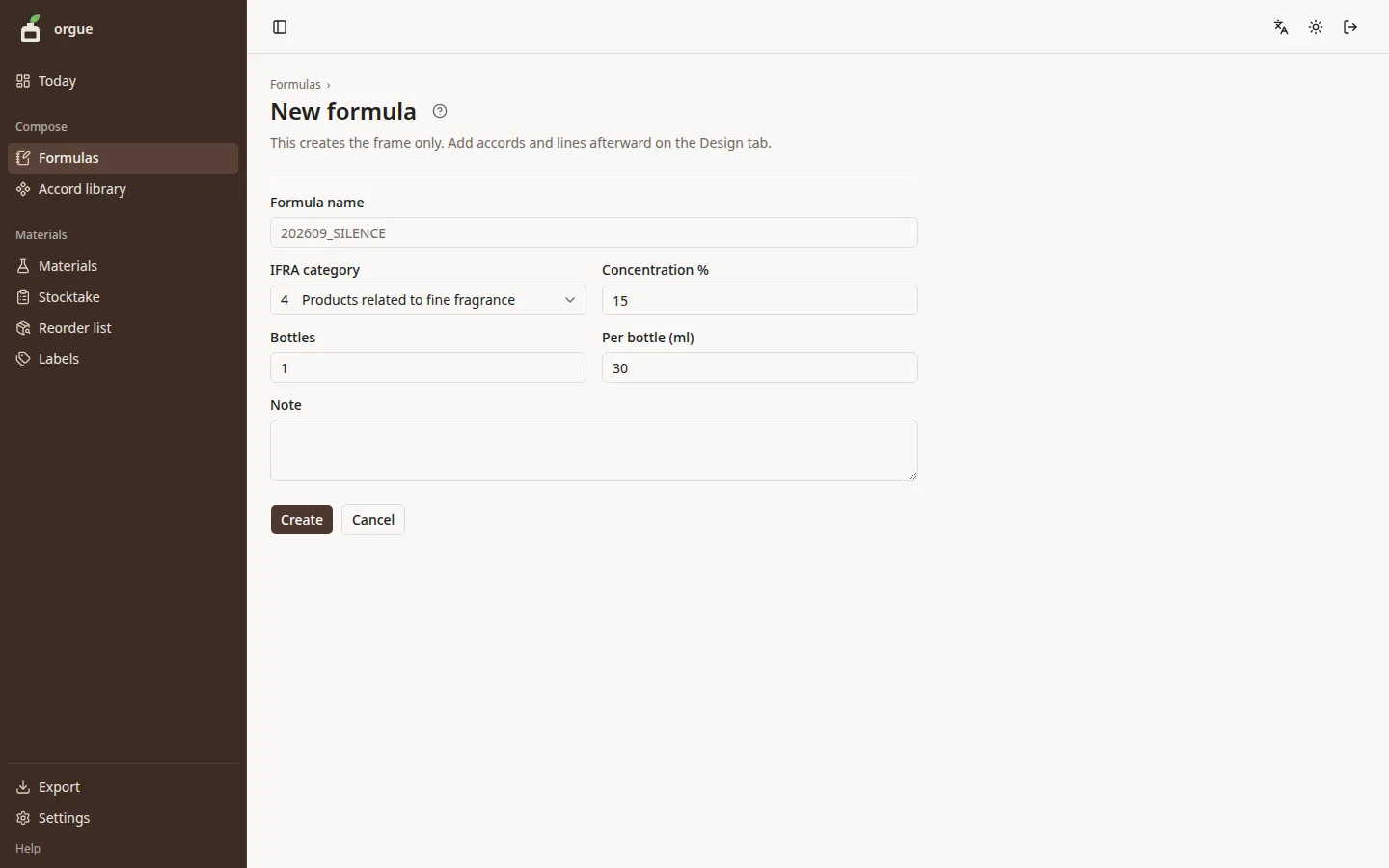
Open it from “New formula” at the top right of the formula list. This creates only the frame of a formula. You add the material lines afterward on the Design tab.
Steps#
- Enter the formula name, IFRA category, concentration %, bottles, and volume per bottle (ml). The note can stay empty
- Click “Create” to open the formula’s Design tab
Common pitfalls#
- Formula names must be unique among your active formulas
- You can change the concentration, bottles, and volume per bottle at any time in the fields at the top of the Design tab
The four tabs of a formula#
When you open a formula, four tabs appear under its name.
| Tab | Use it to |
|---|---|
| Design | Enter material lines and amounts to build the scent, and finalize versions |
| Formula sheet | View or print the ratio of each material on one sheet of paper |
| Make | Set the number of bottles, weigh, and take the amounts from stock |
| Versions | See the list of finalized versions. This is also the way into Compare |
Design tab#
This is where you build the contents of a formula. Contents is on the left, the accord cards are in the middle, and the balance panel is on the right (IFRA limit, stock, cost, family breakdown, note, and over time).
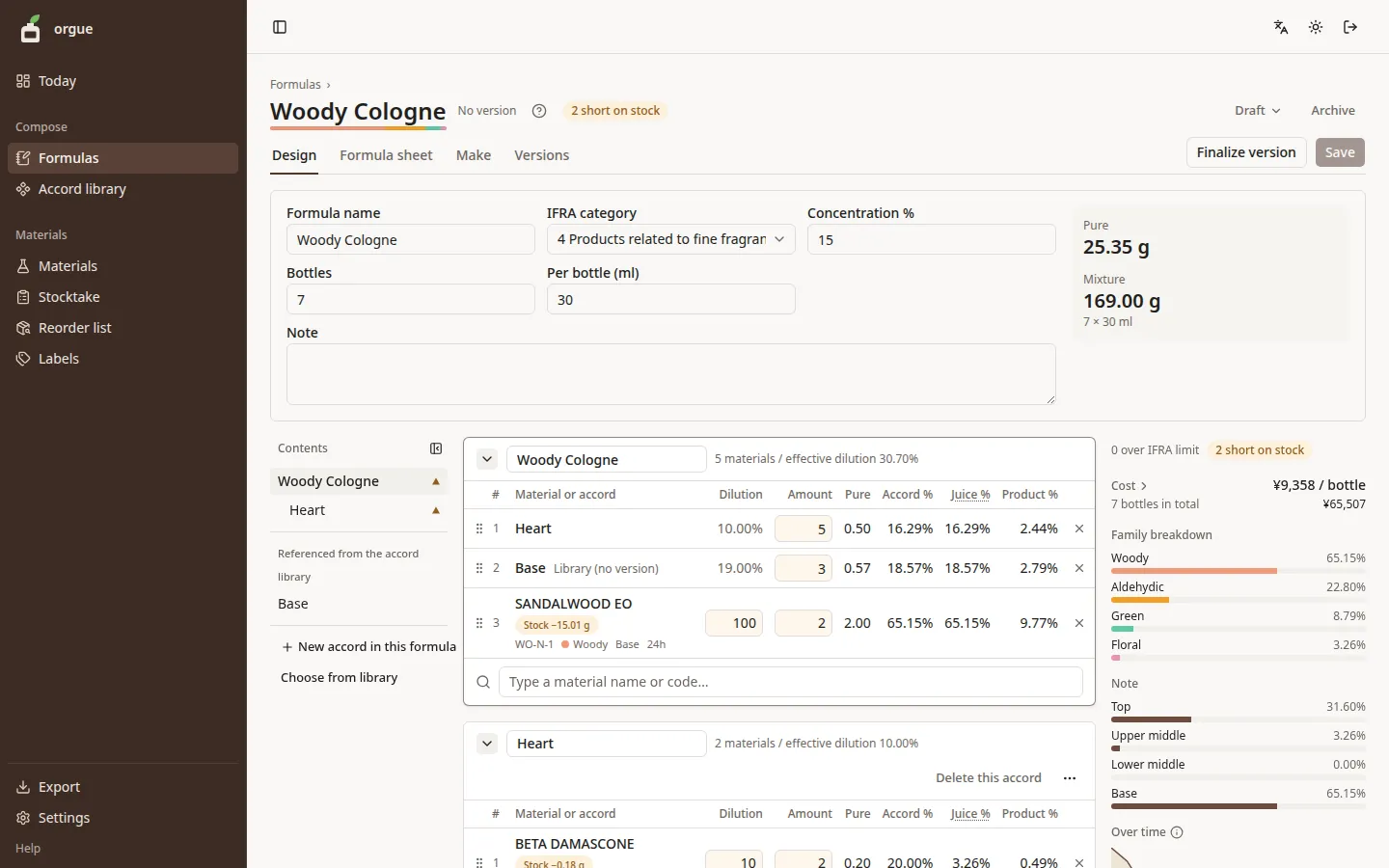
Each row on a card is one material (or one accord). You enter only the formula dilution and the amount by hand. Pure, accord %, juice %, and product % are recalculated as you type. On a phone, you can type them right in the row too.
Steps#
- Enter a material name or CODE in the search box below a card, then click a suggestion to add a line
- Enter the “Amount” of the line. If the amount counts a diluted liquid (for example, 5 drops of a 10% solution), adjust its “Formula dil.” too. Press Enter (“Next” on a phone) in an amount field to move to the next line’s amount
- To group materials separately, add an accord from “New accord in this formula” in the contents on the left. To use an accord from the accord library, click “Choose from library”
- Drag the handle at the left of a line to reorder it
- There is no Save button. When you leave a field (or press Enter in a one-line field), the whole formula is saved at once, and “Saving…” then “Saved 14:32” appears at the top right. Actions such as deleting or reordering lines are saved right away
- When the contents are settled, click “Finalize version”, enter a one-line note, and finalize (Versions tab)
Drafts#
The contents you are working on in a formula are a “draft”. To try another blend, choose “Add a new draft” from the “…” menu at the top right to copy the current draft. Once a formula has two or more drafts, a “Draft: name” menu appears at the top right, where you can switch, add a new draft, rename, compare, and delete drafts. Formula settings, versions, and batch records are shared across drafts.
Stock bottle weighed for a batch#
The small tag next to a material name (such as “Stock 10%”) shows which dilution of stock bottle is weighed on batch day. The stock check uses that bottle too. Click the tag to choose another one for this formula only (Material default / Neat / 10% / 1% / 0.1%). Your choice is saved right away.
The table’s formula dilution is how the amount is counted and is separate from the stock bottle’s dilution. For example, even if a line’s formula dilution is 10%, when the stock is neat, the batch weighs just the needed amount from the neat bottle.
Common pitfalls#
- If someone else (or another tab) has the same draft open and changes the same field, the value from whoever left the field last is kept. Changes to different fields are all kept
- In an organization with two or more members, a name tag appears on the field someone else is in, and circles for the people viewing now appear at the top right (select them to see names). You can still type in a tagged field
- To go back to an earlier value, open History at the top right. It lists who changed what and when, newest first, and Restore this version returns the whole draft (including the formula settings) to that point. Restoring is recorded too, so you can restore again (changes one person makes within a minute are grouped into one entry, and entries older than 30 days are removed)
- If “Couldn’t save the changes.” appears at the top right, check your connection and select “Save again”
- “Finalize version” is unavailable while the formula has no material lines. If you select it while typing, your changes are saved first
- A row with a red dot is over the IFRA limit. A row with an orange dot is short on stock (counted as bottles × amount)
- Cost is counted with the unit price of the bottle that would be used first when making a batch (oldest bottle first). Materials whose bottles have no unit price are left out, and only their count is shown
- Cards for library accords are read-only. To edit one, open it in the accord library (Accord library)
Formula sheet tab#
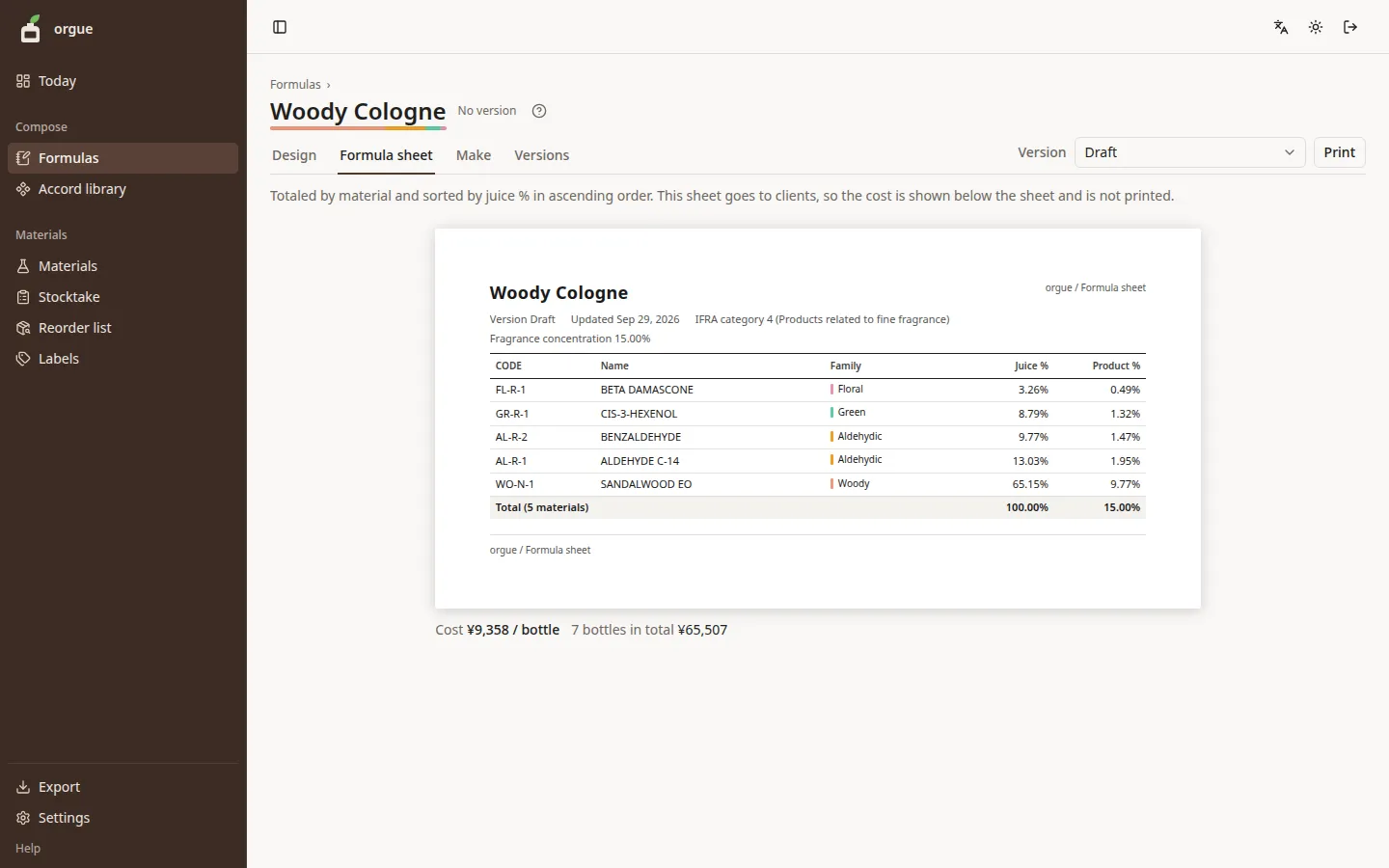
This is a one-page sheet that totals the ratio of each material and sorts them by juice % in ascending order. Its columns are only CODE, Name, Family, Juice %, and Product %, with no grams, stock, or cost (because the sheet may be handed to clients).
Steps#
- Use the selector at the top to choose the version to show (v1, v2 …, or a draft). The default is the latest version
- Click “Print” to print it on one portrait A4 page
Common pitfalls#
- Ratios have three decimal places, so that trace materials are not rounded down to 0.00
- The cost below the sheet appears only on screen and is not printed
Make tab#
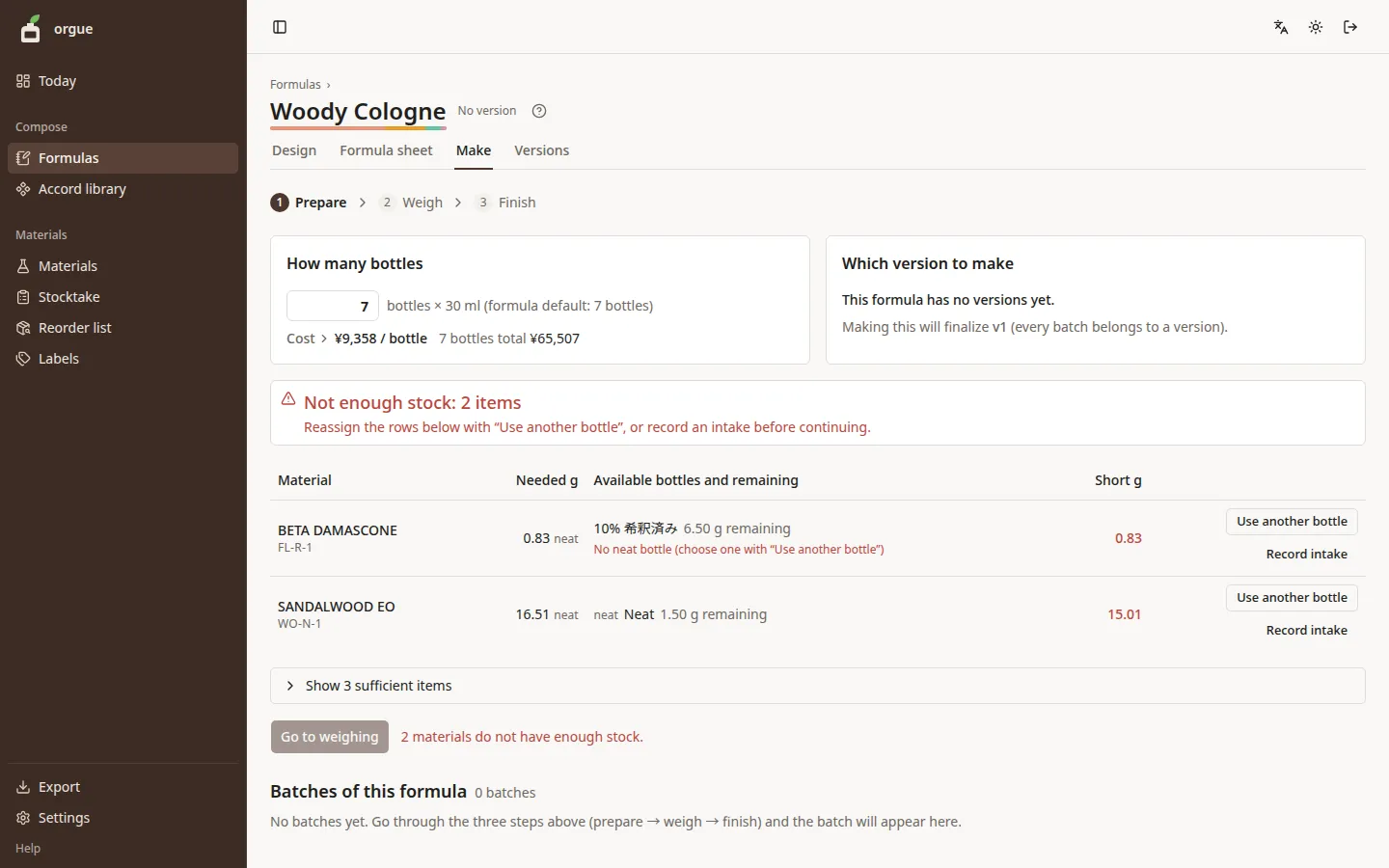
Open this tab on the day you make a batch. Work down the page through three steps: Prepare → Weigh → Finish.
Steps#
- Prepare: Enter the number of bottles (the default is the formula’s bottles). At the top you see either “Stock is sufficient” or “Not enough stock: N items”
- For a short row, either assign a different bottle with “Use another bottle”, or click “Record intake” to register a bottle and come back. When stock is sufficient, click “Go to weighing”
- Weigh: Work down the checklist. It has three parts: (1) “Make pre-dilutions”, (2) “Add to product” (largest g first, with cumulative g), and (3) “Additional alcohol”. Clicking anywhere on a row checks it
- Finish: Enter the make date and a note, then click “Finalize batch and take from stock”. The amounts used are taken from each bottle’s remaining amount, and you move to the Versions tab
Common pitfalls#
- A batch is always made from a version. If the current draft differs from the latest version (or there is no version yet), the version is finalized first and then the batch is made (with the note “製造 yyyy-mm-dd のため自動確定”)
- For trace materials too small to weigh on the scale (below “Scale minimum (g)” in Settings; default 0.10), a pre-dilution step is shown. What is taken from stock is the amount you weighed out
- If even one bottle runs short, neither the batch record nor any stock movement is saved. The message shows which materials are short and by how many g
- Weighing progress is kept until you close the tab. If you reload, you can continue weighing from where you left off
- If you got the number of bottles wrong, click “Cancel batch” on the row in “Batches of this formula” below the tabs to return the stock (a cancellation cannot be undone)
- Click “Print” in the Weigh step to print the weighing sheet
Versions tab#
This is the list of finalized versions. It shows the number, the finalized date, the note, and how many batches were made. Click “View formula sheet” to open that version’s formula sheet.
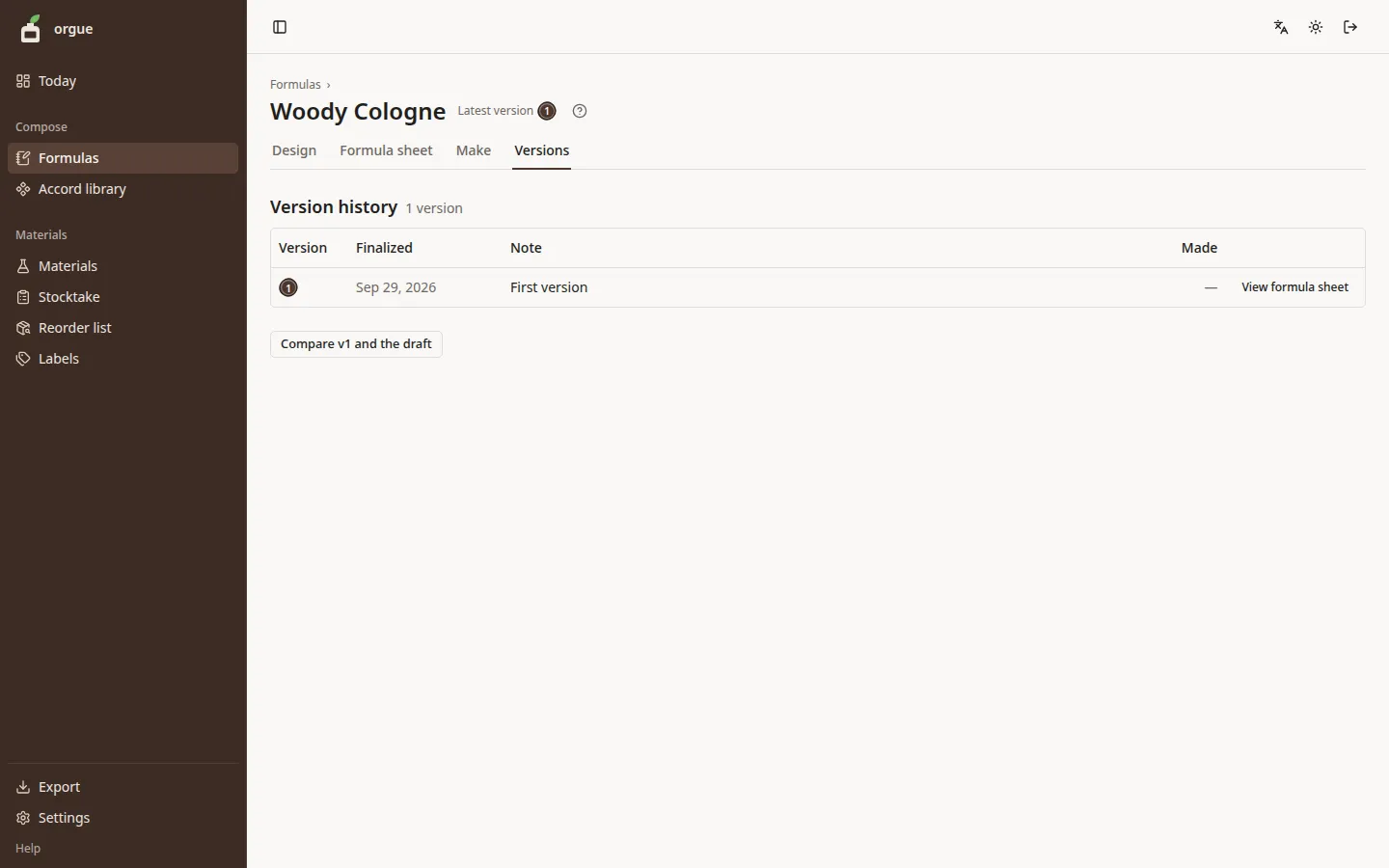
- A version stays exactly as it was when you finalized it. Editing the draft does not change it
- Use “Compare v1 and v2” at the top to view the previous version and the latest version side by side
Compare#
This screen puts any two drafts or versions side by side so you can see the differences. Open it from “Compare” in the draft menu on the Design tab, or from the way in on the Versions tab.
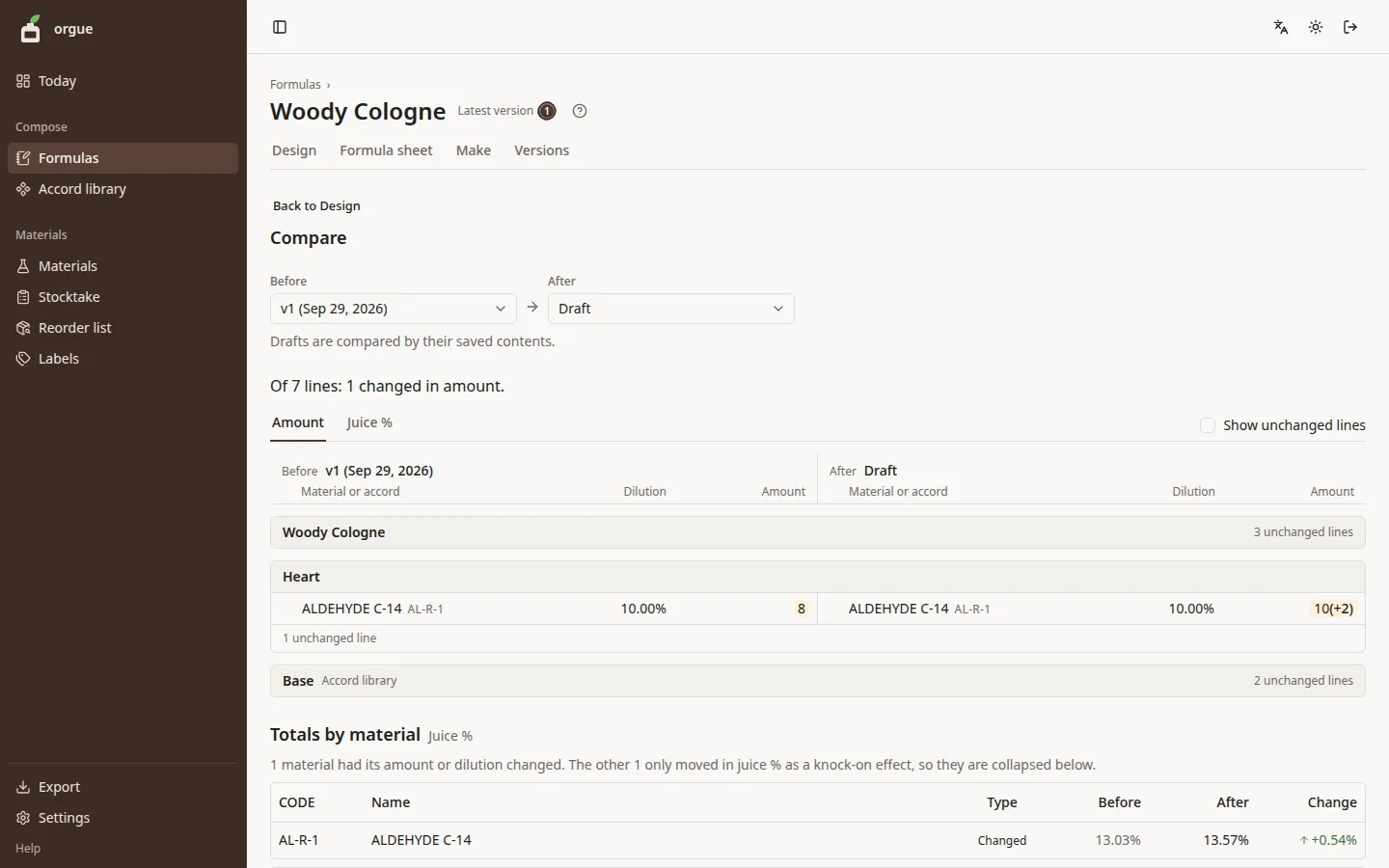
- A line you added shows only on the right, on a green background with “+”. A line you removed shows only on the left, on a red background with “−”. A cell whose amount or dilution changed is on an amber background with the difference, such as “10 (+2)”
- Switch between “Amount” and “Juice %” with the underlined tabs
- Unchanged lines are hidden by default. Click “Show unchanged lines” to show everything
- “Totals by material” at the bottom lets you check how each material’s share moved
Common pitfalls#
- A draft is compared by its saved contents (the field you are typing in is saved before comparing)
- The two items you chose are kept in the URL, so you can reopen the same pair later
Archive#
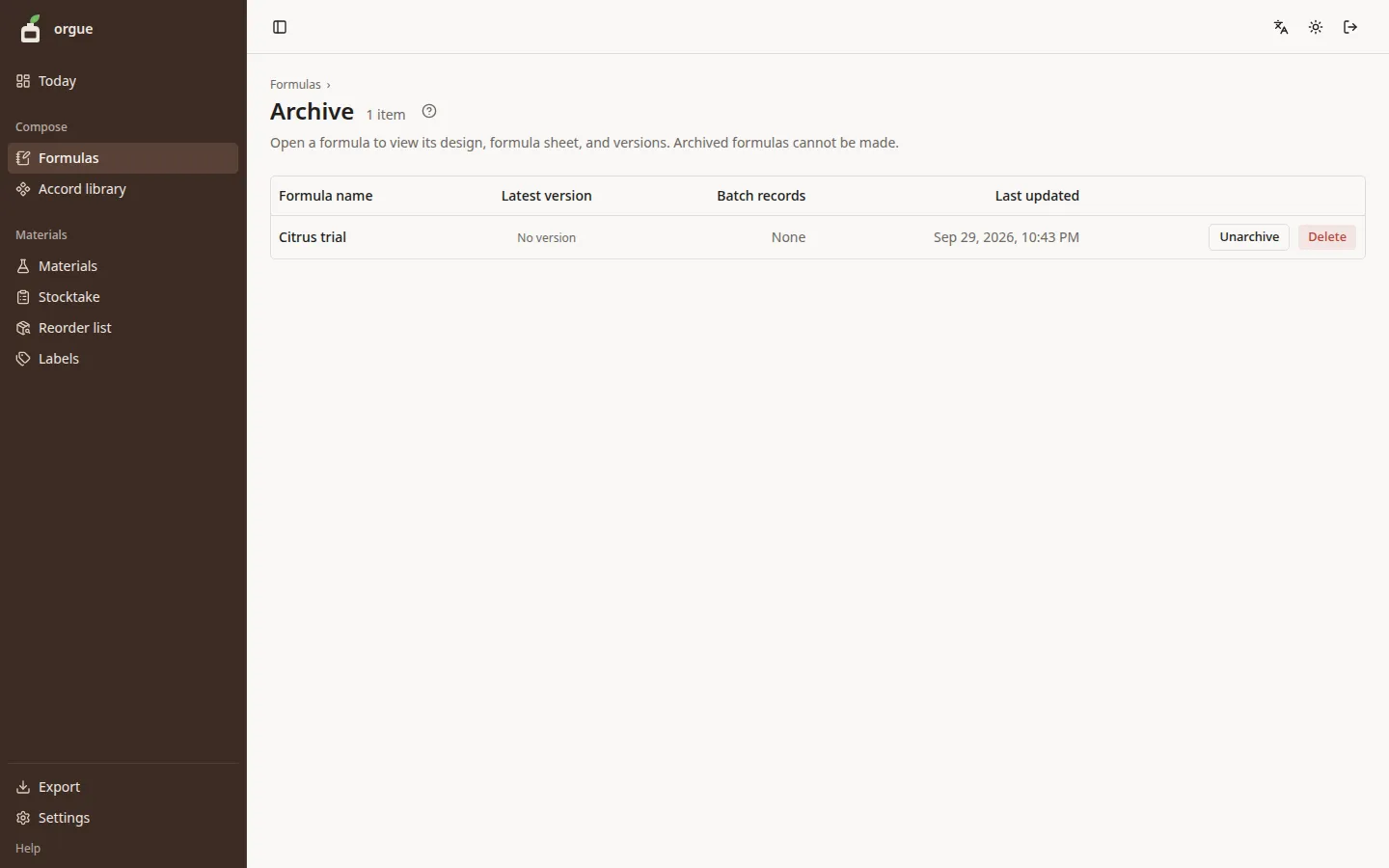
This is where you put away formulas you no longer use. Open it from “Archive (N)” at the bottom of the formula list.
Steps#
- To archive a formula, click “Archive” at the top right of its Design tab and confirm
- To bring it back, click “Unarchive” on its row in the Archive screen
- A formula you only made as a trial can be removed with “Delete” on its row in the Archive screen
Common pitfalls#
- An archived formula still lets you view its design, formula sheet, and versions. Only finalizing a batch is unavailable
- A deleted formula no longer appears on any screen, but its batch records and stock history are kept. Restoring it requires an admin