Materials and stock
How to use the material list, intake, material details, stocktake, and the reorder list. Register materials and bottles, match remaining amounts to the shelf, and decide what to buy next.
Material list#
This screen lists the materials you have, one per row. The color band at the start of each row is the family color, and the Stock and Expiry columns on the right show warning marks. Select a row to open the material's details.
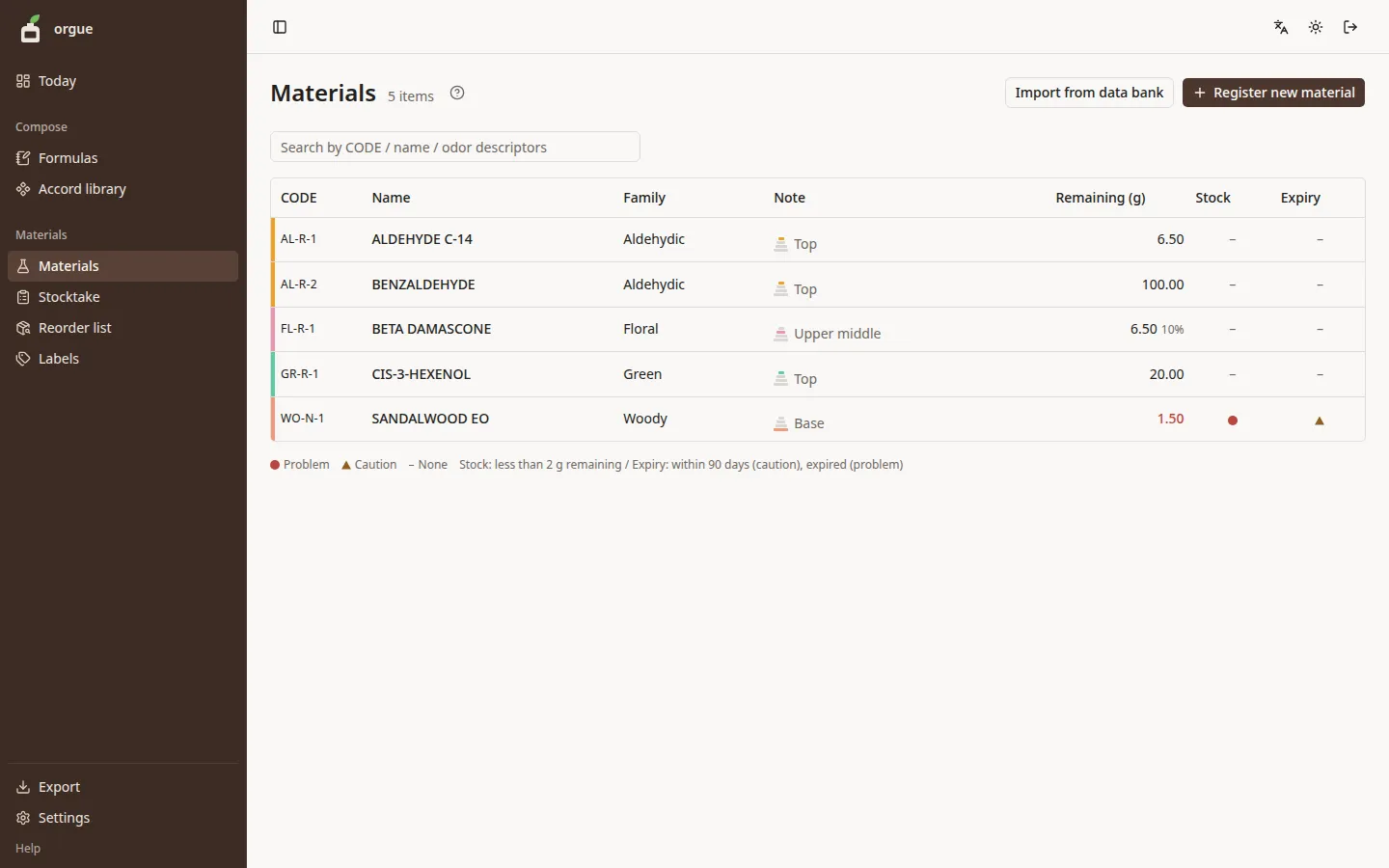
| Mark | Meaning |
|---|---|
| Red circle | Problem. Less than 2 g remaining, or past the expiry date |
| Amber triangle | Caution. Within 90 days of the expiry date |
| Faint “–” | Nothing to report |
Steps#
- Type a CODE, name, or odor descriptor in the search box at the top to show only the matching materials
- Select a column heading to sort (ascending, descending, off). The funnel in a heading filters by that column
- Active filters appear above the table. Remove them one at a time with ×
Good to know#
- The sort order and filters stay in the URL, so a view like “woody materials with 2 g or less remaining” can be bookmarked as is
- On a phone, the table becomes cards, and sorting and filtering open from the “Sort and filter” button
- Inactive materials don't appear in the list
Intake#
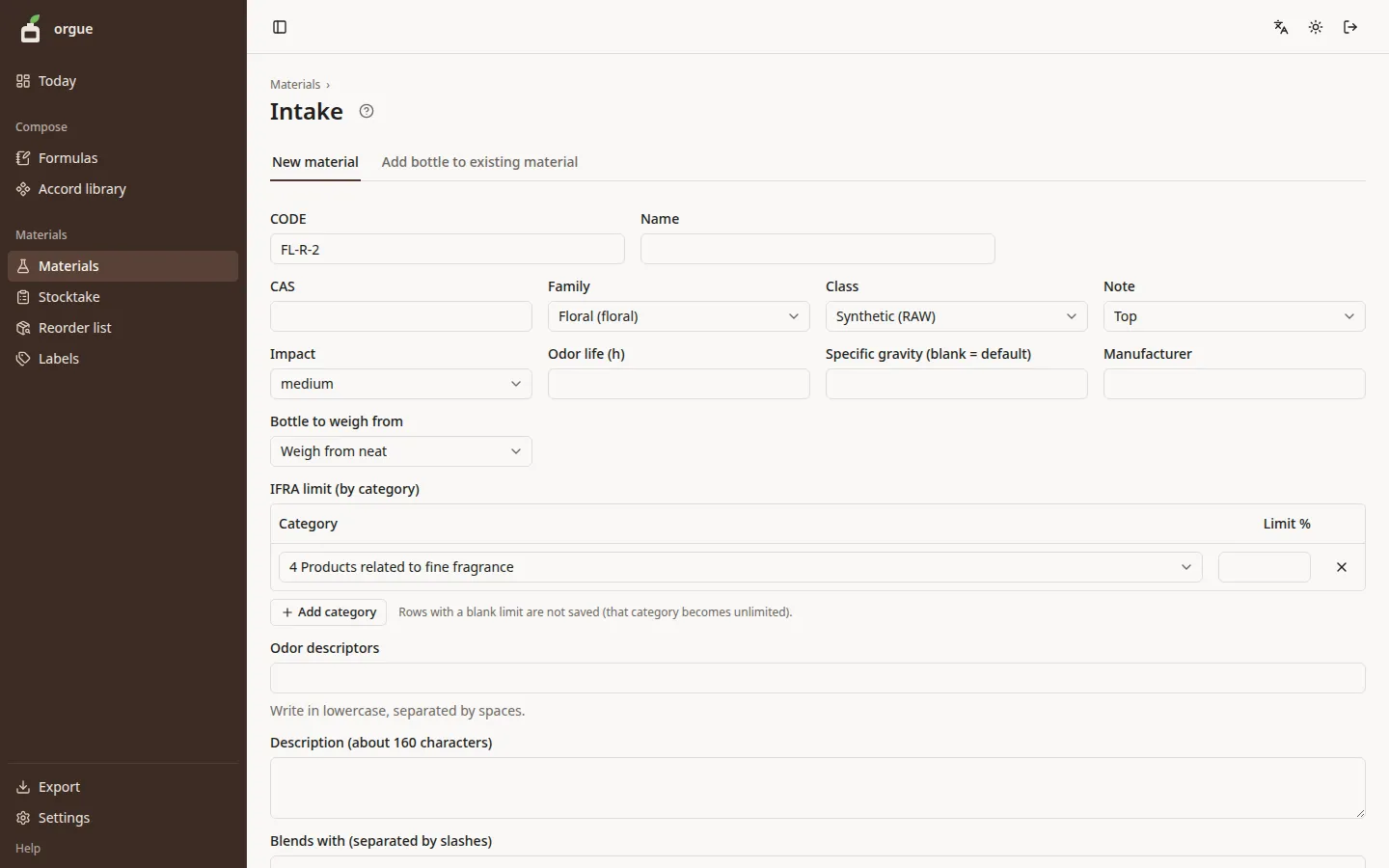
This screen registers a material and its first bottle. Open it from “Register new material” on the material list, or from “Intake (add bottle)” on a material's Stock tab. It has two tabs: “New material” and “Add bottle to existing material”.
Steps#
- For a new material, fill in the material fields such as CODE, Name, and Family on the “New material” tab. CODE is filled in with the next number for the family
- For the IFRA limit, enter the limit % on the category 4 row (fine fragrance). Add other categories with “Add category”
- In the bottle fields below, enter the supplier, dilution, Packed (fill date), the initial amount in g, and the amount paid and its currency (the quantity bought defaults to the initial amount). The unit price is worked out as you type. If you don't enter the amount paid, enter the unit price (ledger currency) directly
- Select “Register”
- For a material you bought more of, choose the “Add bottle to existing material” tab, search for and pick the material, fill in the bottle fields, and select “Add bottle”
Good to know#
- When you pick an existing material, the supplier, unit price, and dilution of its newest bottle are filled in. A note says the values from the previous bottle are filled in, so change only what differs
- If you paid in a currency other than the ledger currency (Settings › Ledger; yen by default), enter the amount charged (from your card statement) or a rate. The price is converted to the ledger currency once and kept. Exchange rates aren't fetched automatically. The rate field is filled with your last rate for that currency
- The default expiry date (Expires) is 2 years from today
- “Bottle to weigh from” is the default bottle dilution to weigh from when making (neat, 10%, or 1%). You can also change it for each formula (Formula design)
- A row with a blank IFRA limit isn't saved. That category becomes “unlimited”
Initial amounts#
A screen for entering the amounts in the bottles you have for materials without a bottle (such as materials just imported from the data bank), all at once. Open it from “Initial amounts” in the line “N materials have no bottle.” on the materials list or the data bank. Each material you enter an amount for gets its first bottle, recorded as an intake.
Steps#
- For each material, enter the amount in your bottle in the “Initial (g)” field. Enter moves to the next material's field
- For a diluted bottle, enter the dilution %. A blank field means 100 (neat)
- The supplier is filled in with the supplier of the bottle most recently registered in the ledger. Change it only when it differs
- Select “Register N materials”. Registered materials disappear from the list
Good to know#
- Materials without an amount aren't registered. You can enter them later on the same screen
- Entered values are kept in this browser as a draft, so they stay even if you close the page
- Unit price, fill date, and expiry date aren't entered here. For a material that needs them from the start, register it with “Add bottle to existing material” in Intake instead
Material details (profile)#
Select a row in the material list to open this screen. Under the material name there are two tabs: “Profile” and “Stock”. The Profile tab shows the scent description, IFRA limits (by category), specific gravity, and the bottle to weigh from.
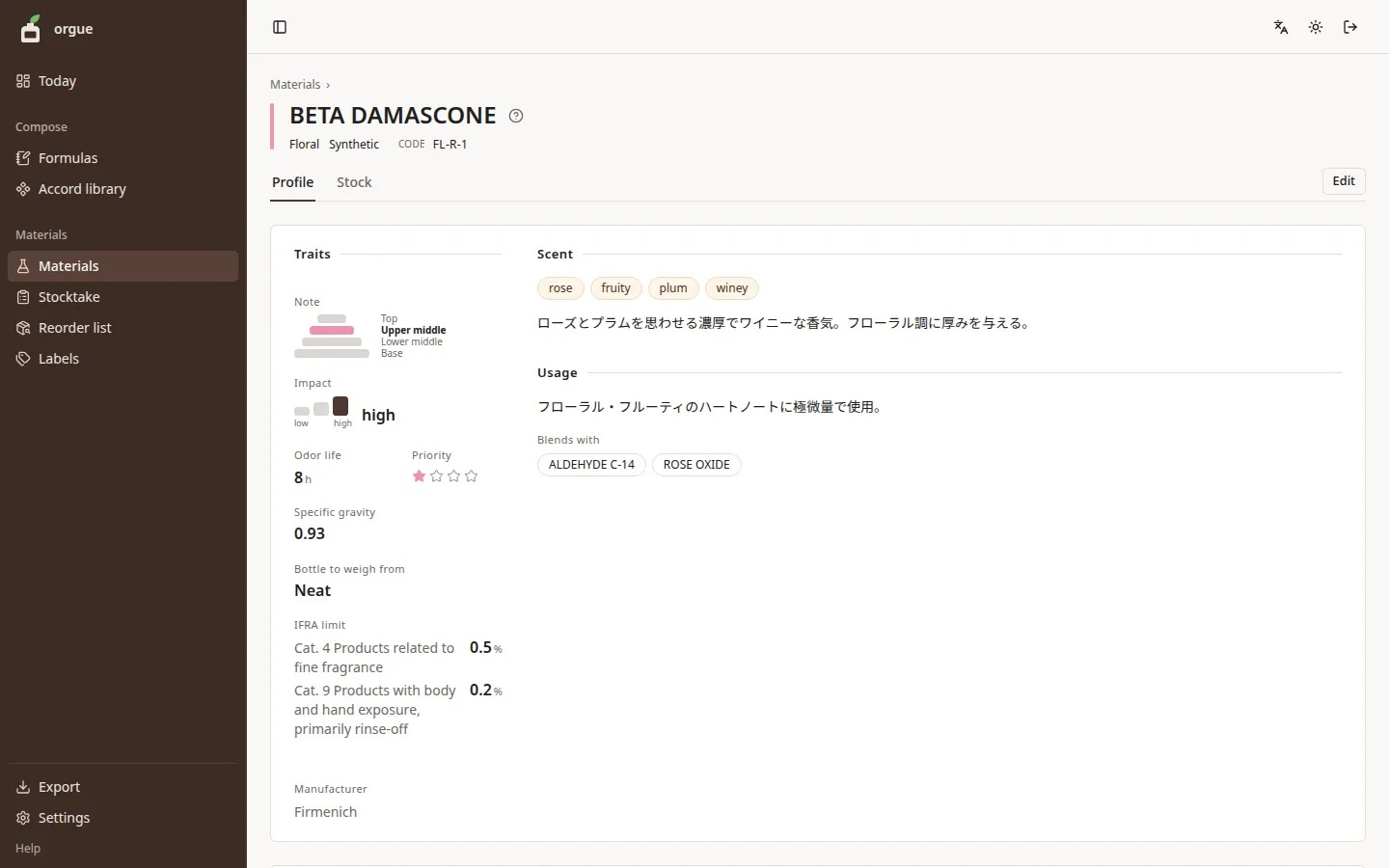
At the bottom, “Used in formulas and the accord library” lists the formulas that use this material and its juice % in each one. Before you swap a material out, you can check which formulas it affects.
Editing the profile#
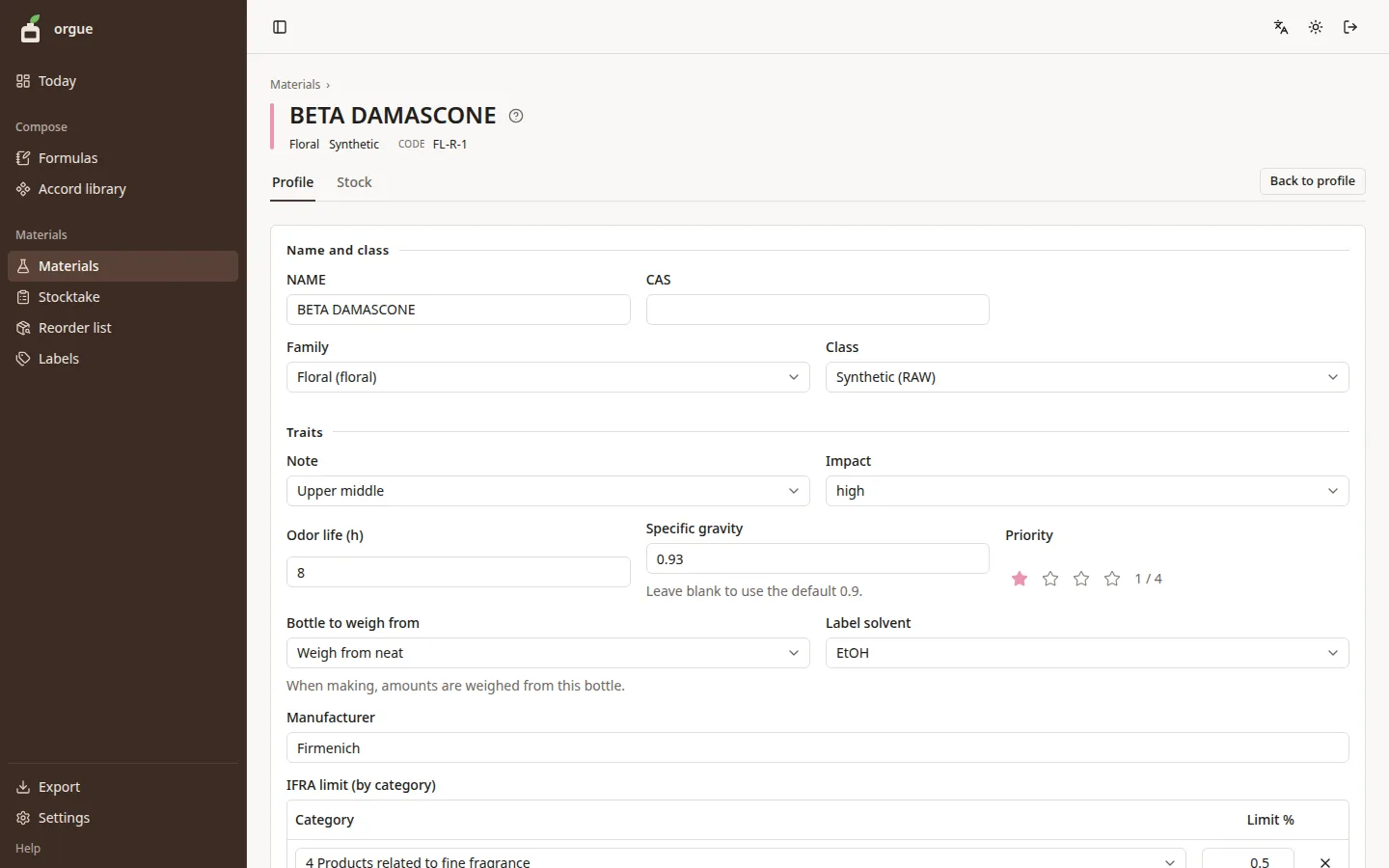
Open it with “Edit” at the top right of the Profile tab. It has the same fields as the New material tab in Intake.
Steps#
- Change the fields you want to fix
- Select “Save” to return to the Profile tab
Good to know#
- If you leave specific gravity blank, the “Default material specific gravity” setting is used (Settings › Formulas)
- If you leave the screen partway through editing, your changes aren't kept
Stock tab#
This screen shows the material's bottles and the history of changes to their remaining amounts.
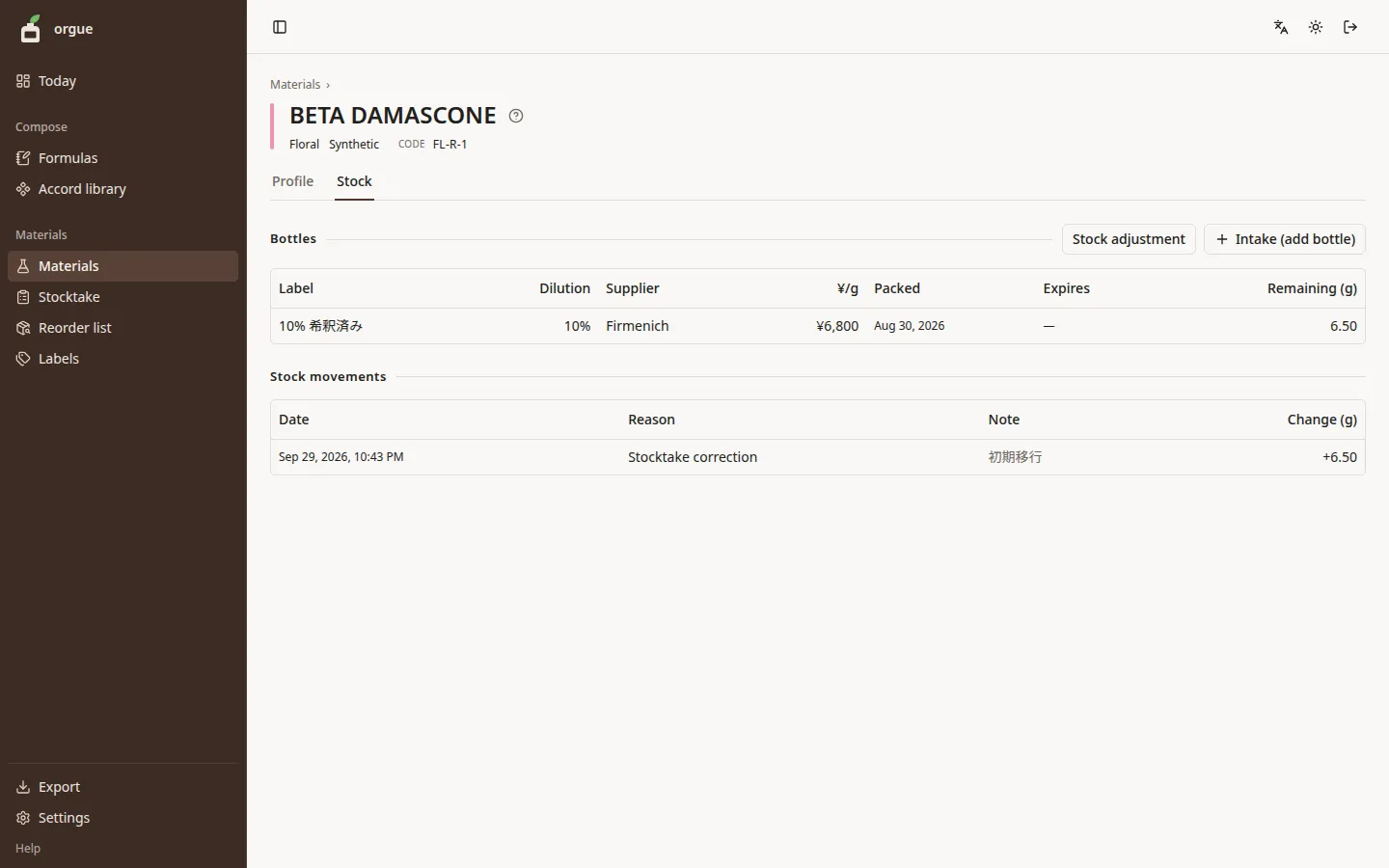
- Bottles … each bottle's dilution, supplier, unit price, fill date, expiry, and remaining amount
- Stock movements … intakes, makes, stocktakes, and manual changes, newest first. A make row reads “formula name vN (7 bottles)”. Select it to open that formula's Make tab
Steps (fixing the remaining amount by hand)#
- Select “Stock adjustment” at the top right of the bottle list
- Choose the bottle and enter the change in g (negative to decrease), the reason (Stocktake correction / Restock / Discard / Used in formula), and a note
- Select “Record” to add one row to the stock movements
Good to know#
- The Make tab records what a make uses automatically. Use Stock adjustment only for what would otherwise be missed, such as discards, trials that aren't in a formula, and one-off touch-ups
- You can't record a change that would make the remaining amount negative. If you see “Not enough remaining”, check the change or the bottle
- When you buy a new bottle, register it with “Intake (add bottle)” rather than Stock adjustment, so the supplier, unit price, and expiry are kept
Stocktake#
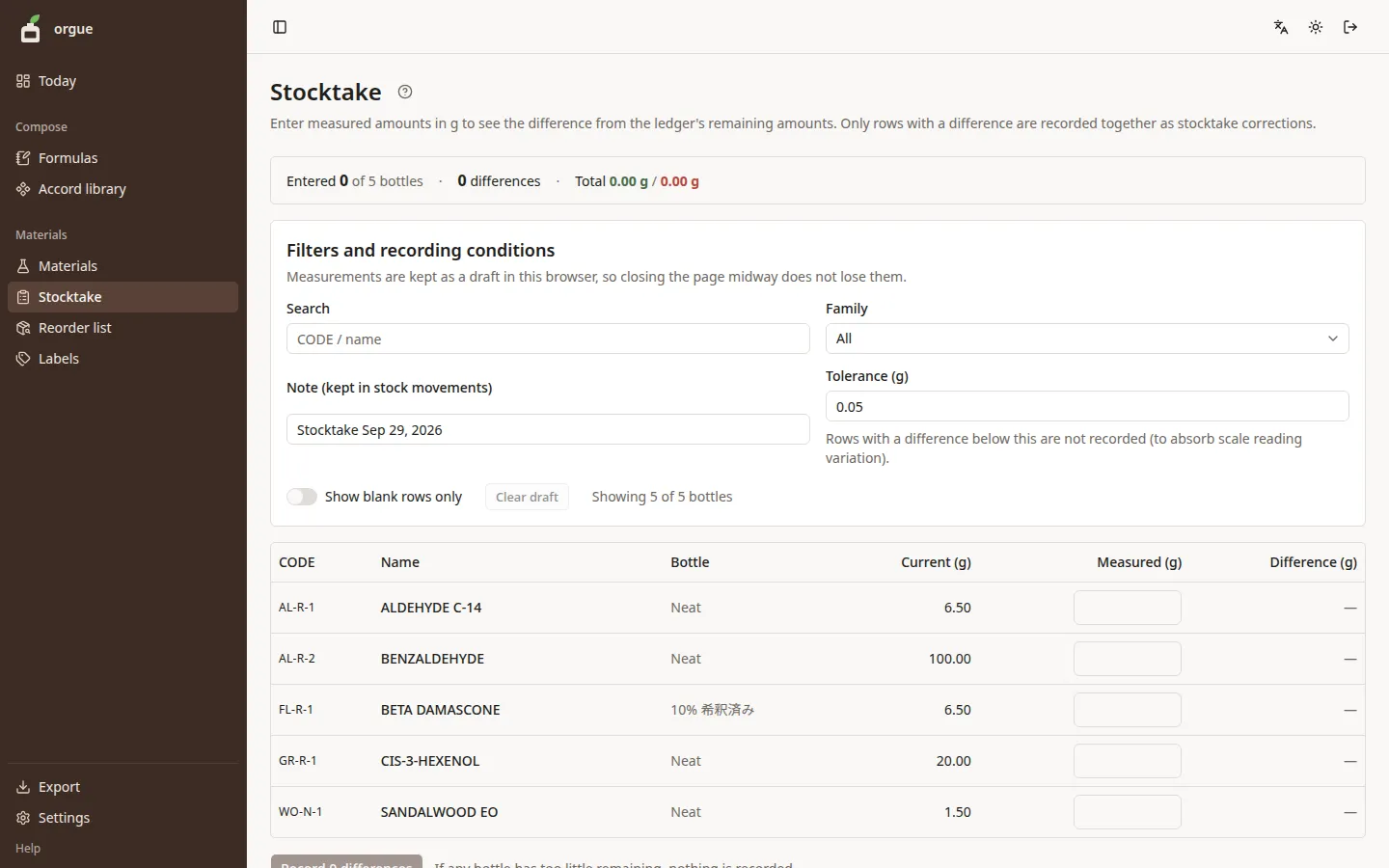
On this screen you put each bottle on the shelf on a scale and enter the measured amount. Only the rows that differ from the ledger's remaining amount are recorded together as stocktake corrections.
Steps#
- Put a bottle on the scale and enter the reading in that row's “Measured” field. Enter the amount you weighed, not the change
- Press Enter or Tab to move to the next row. The difference in g appears right away (green if it went up, red if it went down)
- When you finish weighing (even partway along the shelf), select “Record N differences” in the bar fixed to the bottom of the screen, check the details, and select “Record”. The result appears in the same bar, such as “Recorded N corrections”
Good to know#
- What you enter is kept in the browser as a draft, so closing the page partway doesn't lose it. Recording clears the rows you recorded and the rows within the tolerance
- Rows whose difference is smaller than the tolerance (default 0.05 g) aren't recorded. This keeps scale reading variation from filling the history
- If any bottle has too little remaining, nothing is recorded. Check the red rows and record again
- Differences are recalculated from the remaining amount at the moment you record. Amounts used by a make while you were weighing are not undone
Reorder list#
This screen groups the materials to review for your next order by supplier. Use it when you place orders in batches a few times a month.
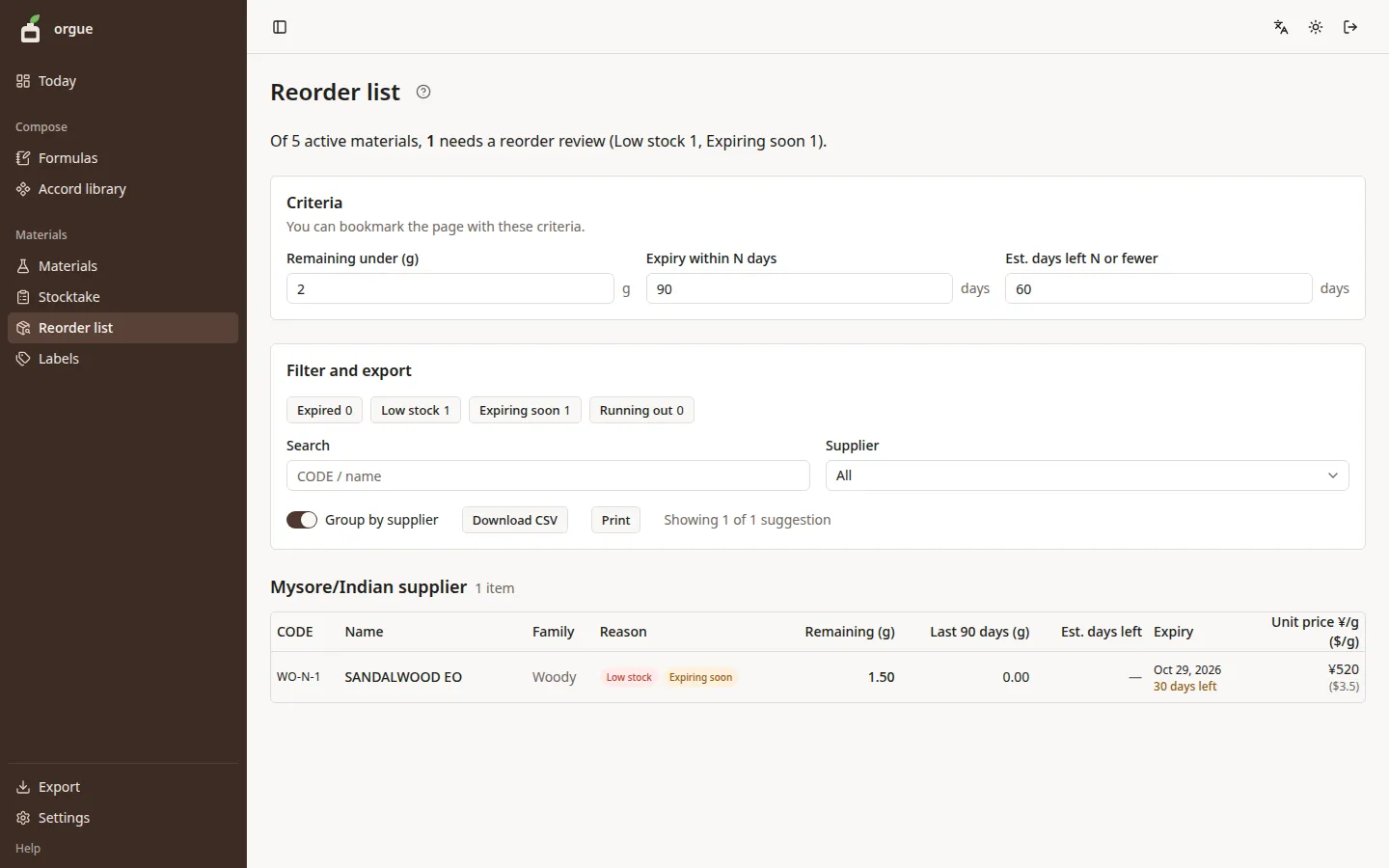
Materials are picked up for these four reasons. You can change the thresholds under “Criteria”.
| Reason | Condition (default) |
|---|---|
| Expired | A bottle is past its expiry date |
| Low stock | Less than 2 g remaining |
| Expiring soon | Within 90 days of the expiry date |
| Running out | Based on use over the last 90 days, 60 days or fewer are left |
Steps#
- The sentence above the table tells you how many materials to review and the breakdown by reason
- Filter by reason, then compare unit prices in each supplier's table
- Select “Download CSV” to save an order list to send to a supplier, or “Print” to print an order memo
Good to know#
- The thresholds you change stay in the URL. Bookmark the page to keep your usual criteria
- Usage counts amounts that were used up (by makes, for example). Stocktake corrections, discards, and restocks aren't included. A material that hasn't been used in the last 90 days shows no days left
- No total amount is shown, because the quantity to order isn't decided yet