Settings
The screen for changing the specific gravities used in formula calculations, the scale minimum, the number of decimal places, and the color theme. Each is saved per ledger and carries over to your other devices.
What it does#
Open it from “Settings” at the bottom of the sidebar. Use the categories on the left (at the top on narrow screens) to switch between Formulas and Display.
Formulas#
These values are used for formula calculations and weighing.
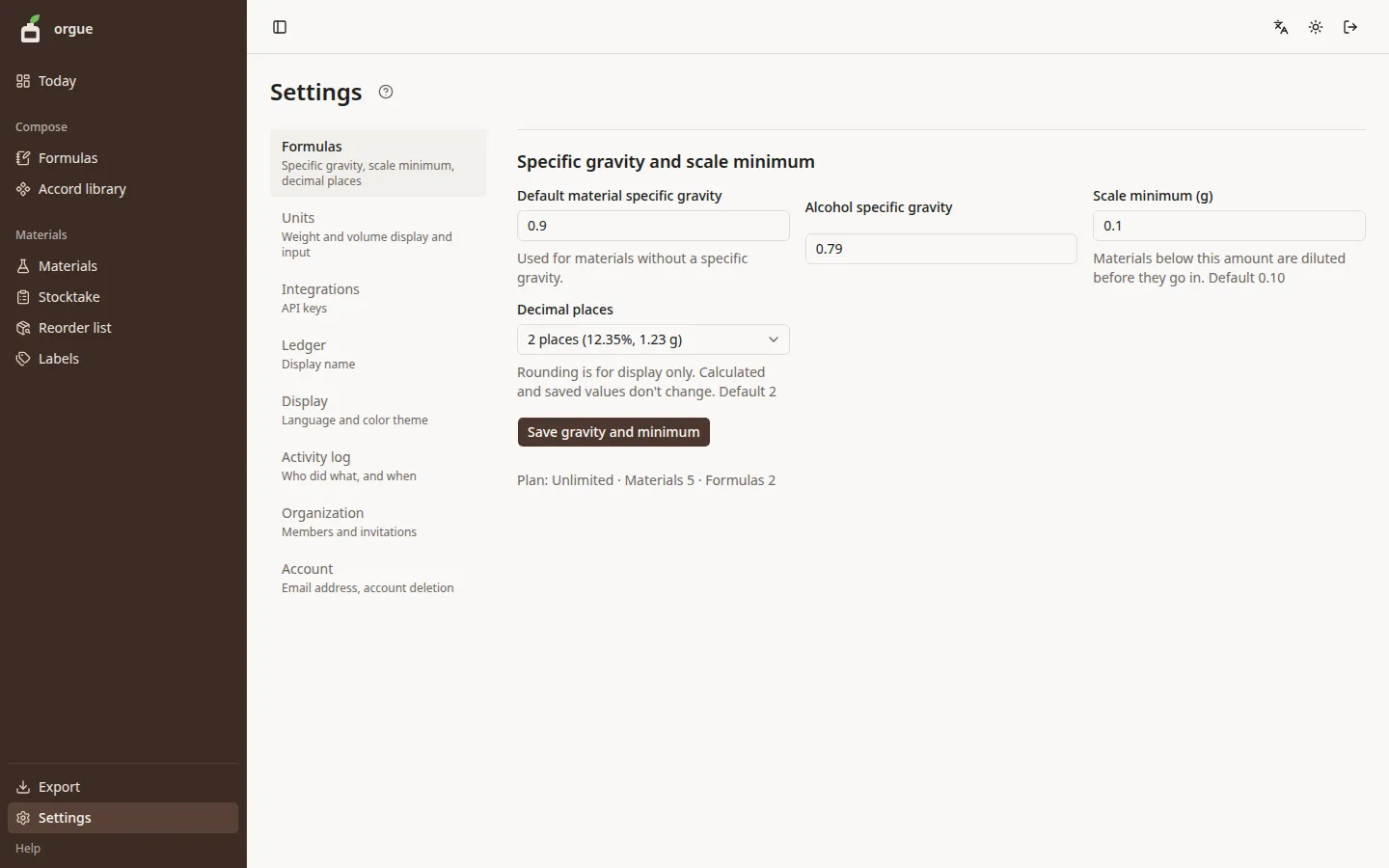
| Field | Meaning | Default |
|---|---|---|
| Default material specific gravity | Used for materials with no specific gravity entered. It affects conversion between ml and g | 0.9 |
| Alcohol specific gravity | Used to convert additional alcohol between ml and g | 0.79 |
| Scale minimum (g) | Materials below this amount are diluted first when weighing a batch, then added (pre-dilution) | 0.10 |
| Decimal places | The number of decimal places for g and % on formula screens (1 to 4). Rounding is for display only, and calculated and saved values don't change | 2 |
Steps#
- Change the values in the fields
- Press “Save gravity and minimum”. “Saved” and the time appear next to the button
Common snags#
- Raising the scale minimum increases the number of materials that get pre-diluted. Set it to the smallest amount your scale reads reliably
- Adding decimal places doesn't change the ratios on the formula sheet, which stay at 3 places
Display#
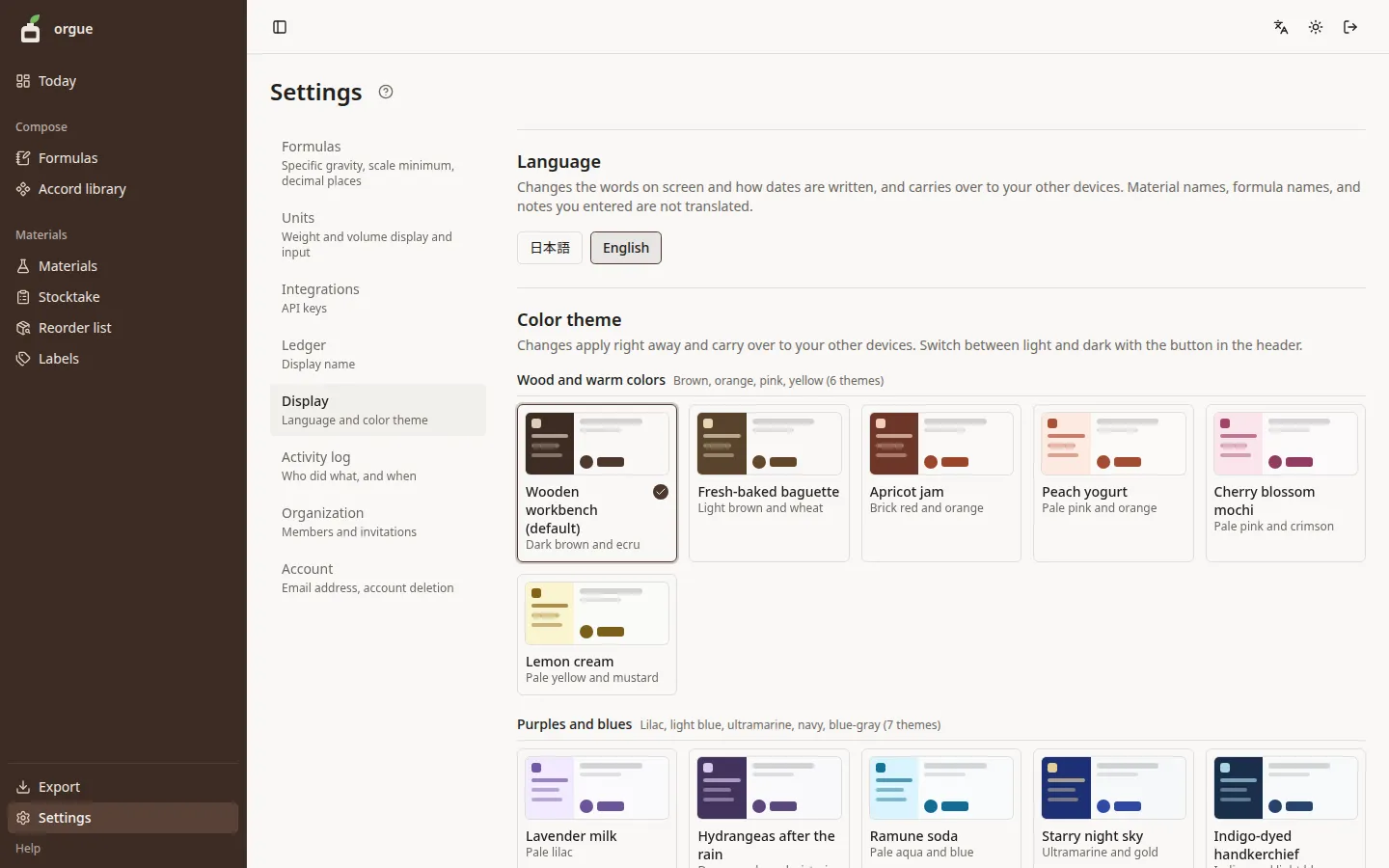
Choose the screen's color theme from 18.
Steps#
- Press a swatch and the colors of the whole screen change right away
- The theme you choose is saved and carries over to your other devices
Common snags#
- Switch between light and dark with the sun (moon) button on the right of the top bar. Each device remembers it separately from the theme
- The guide pages and the welcome page always use the default theme
Integrations#
Connect an AI app such as Claude or ChatGPT to your ledger and it can read your materials, formulas, and accords (and, if you allow it, save formula drafts and add or update materials). Connected apps are listed under Connected apps in Settings › Integrations.
Steps#
- In the app's screen for adding a connector (MCP server), enter
https://<your ledger's domain>/api/mcpas the URL. Leave the client ID and secret fields empty - Your ledger's confirmation screen opens in the browser. Check the app's name and domain in the heading
- Choose the workspace to connect and what to allow, then press Allow
- Back in the app, the tools that read your ledger are ready to use
Common snags#
- To disconnect an app, press Disconnect under Connected apps in Settings › Integrations
- A year after you agreed, or after 30 days without use, the app asks you to reconnect. Connect it again
- Viewers, and workspaces that are read-only because payment has lapsed, can't allow writing