Getting started
How to log in to orgue, register your first material, and create a formula. It also explains the screen layout and the five terms the ledger uses.
What orgue does#
orgue is a web ledger for perfumers that keeps your material stock and formulas together. It brings the materials you have, the remaining amount in each bottle, formula drafts and versions, and batch records into one place.
- Each material has an odor profile and an IFRA limit, and each bottle records its remaining amount, dilution, and expiry date
- As you build a formula, the juice % and any IFRA limit overruns appear right away
- When you make a batch, the amounts used are deducted from the bottles' remaining amounts
- Use Stocktake and the Reorder list to match the ledger to what is on the shelf and decide what to order next
How to log in#
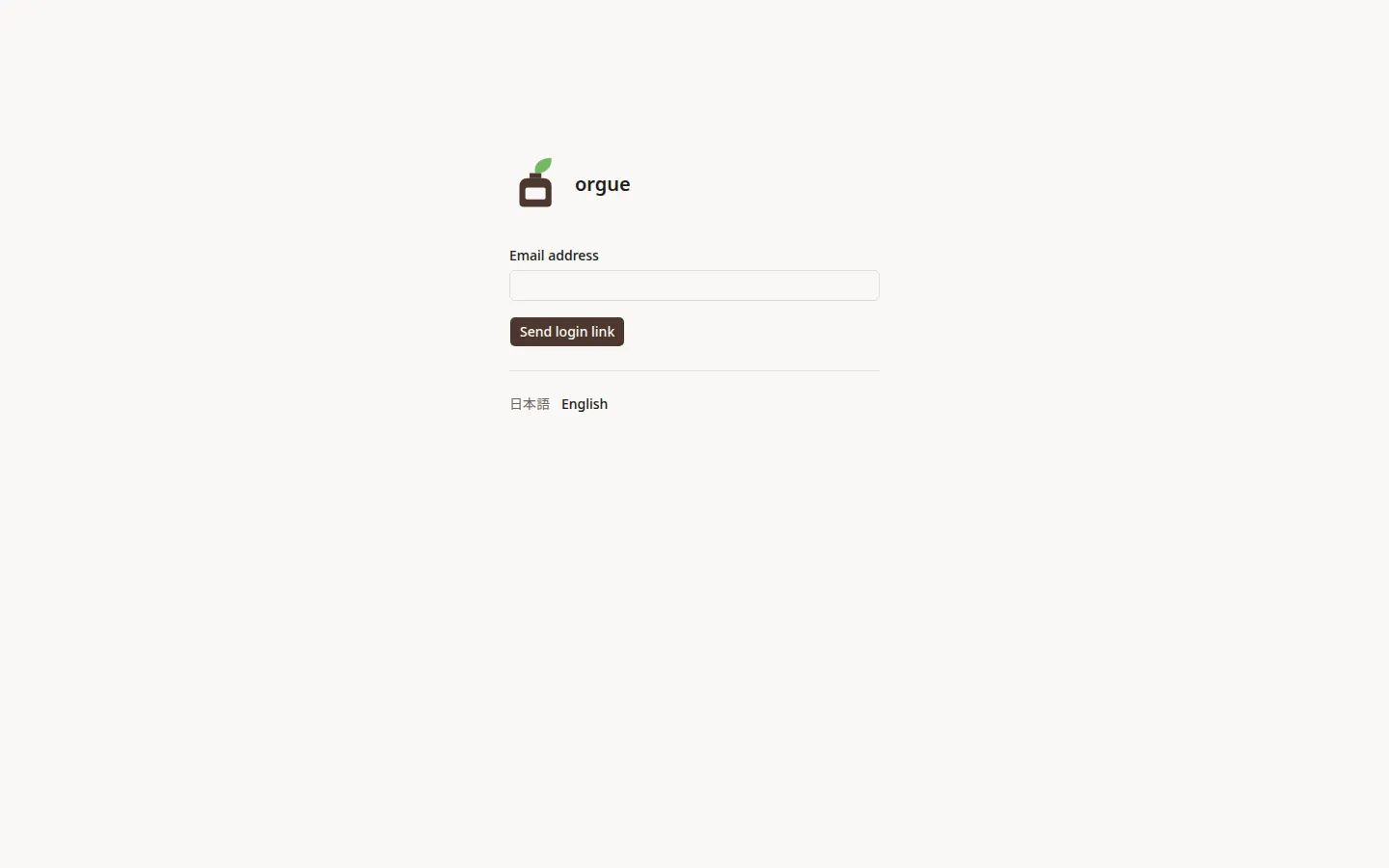
orgue has no passwords. You log in with a link sent to your email.
Steps#
- On the login screen, enter the email address you registered with
- Press “Send login link”
- Open the link in the email that arrives. You can open it from a phone mail app too
- If the Today screen opens, you're logged in
Common snags#
- You can open the link in a different browser or device from the one you sent it from. The browser that opens it is the one that gets logged in
- If “Couldn't log in” appears, the link has expired or has already been used. Send a new one
- A link can't be sent to an address that isn't registered. You can create an account with “Create an account” on the welcome page (while sign-up is closed, the page says so)
Five terms#
The ledger's screens are built around these five terms.
| Term | Meaning |
|---|---|
| Material | One raw material you have on hand. It has a name, CODE, odor profile, and IFRA limit, and it appears in the Materials list |
| Bottle | The physical bottle holding a material. Remaining amount, dilution, expiry, and unit price belong to each bottle, and making a batch or a stocktake changes them |
| Formula | A scent design that combines materials. You set the concentration, number of bottles, and ml per bottle, then add material lines and amounts |
| Accord | A group of materials inside a formula. One you use in other formulas too can go in the Accord library so you can reuse it |
| Version | A saved copy of a finalized formula. A draft can be edited at any time, but a version stays as it is, and making a batch always uses a version |
Screen layout#
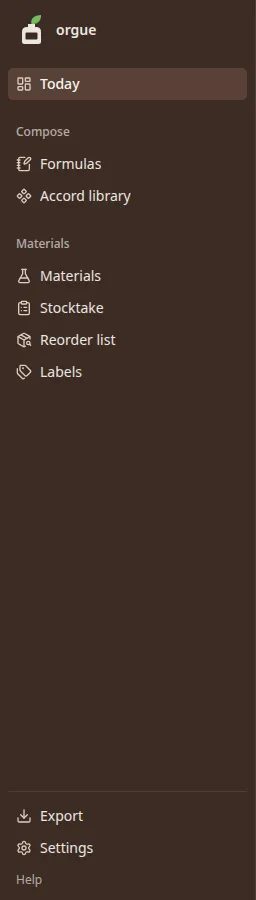
The sidebar on the left groups screens by the kind of work.
| Group | Screen | Use it to |
|---|---|---|
| (Top) | Today | Look first when you open the app. Alerts and the way into your next task |
| Compose | Formulas · Accord library | Build and create scents |
| Materials | Materials · Stocktake · Reorder list · Labels | View, reconcile, and buy materials and bottles, and print bottle labels |
| (Bottom) | Export · Settings | Take a backup and change the ledger's rules |
Press the “?” next to a screen's heading to open that screen's guide in a new tab.
First three steps#
While the ledger is empty, Today shows your next step in one line. Go in this order.
- Add a material. Use “Register new material” on the Materials list to register a material you have and its first bottle (Intake)
- Create a formula. Use “New formula” on Formulas to create the frame, then add material lines and amounts on the Design tab (they are saved when you leave a field; Formula design)
- Finalize a version and make a batch. Use “Finalize version” on the Design tab to keep a version, then set the number of bottles on the Make tab and weigh (Make)
Until there is at least one material, you can't build formulas or accords. Start by adding materials through Intake.
After that, use Stocktake now and then to match the ledger's remaining amounts to what is on the shelf, and use the Reorder list to decide what to buy next.